guide — how to use
Guide About 3 minutes to read
How to use Table Builder for Webflow
Everything you need: inserting a table into CMS rich text, styling it, making it work on mobile, editing it later — and what to do if something doesn't show up.
Something not showing up? Reload the Webflow tab first.
After you install or update the extension, any Webflow tab that was already open needs one reload (Ctrl+R / ⌘+R) before the Table option and Edit visually button appear. This fixes most issues. More fixes ↓
01–04 — insert & build
Insert and build a table
Add the extension to Chrome
- Open the Chrome Web Store page and click Add to Chrome.
- Click the puzzle icon in Chrome's toolbar and pin Table Builder, so it's one click away.
- Reload any Webflow tabs you already had open.
Pinned Table Builder icon
Click + → Table in any rich text field
- Open a CMS item (or a Rich Text element in the Designer).
- Click into the rich text where you want the table, then click the + button.
- Choose Table — it sits right under HTML embed.
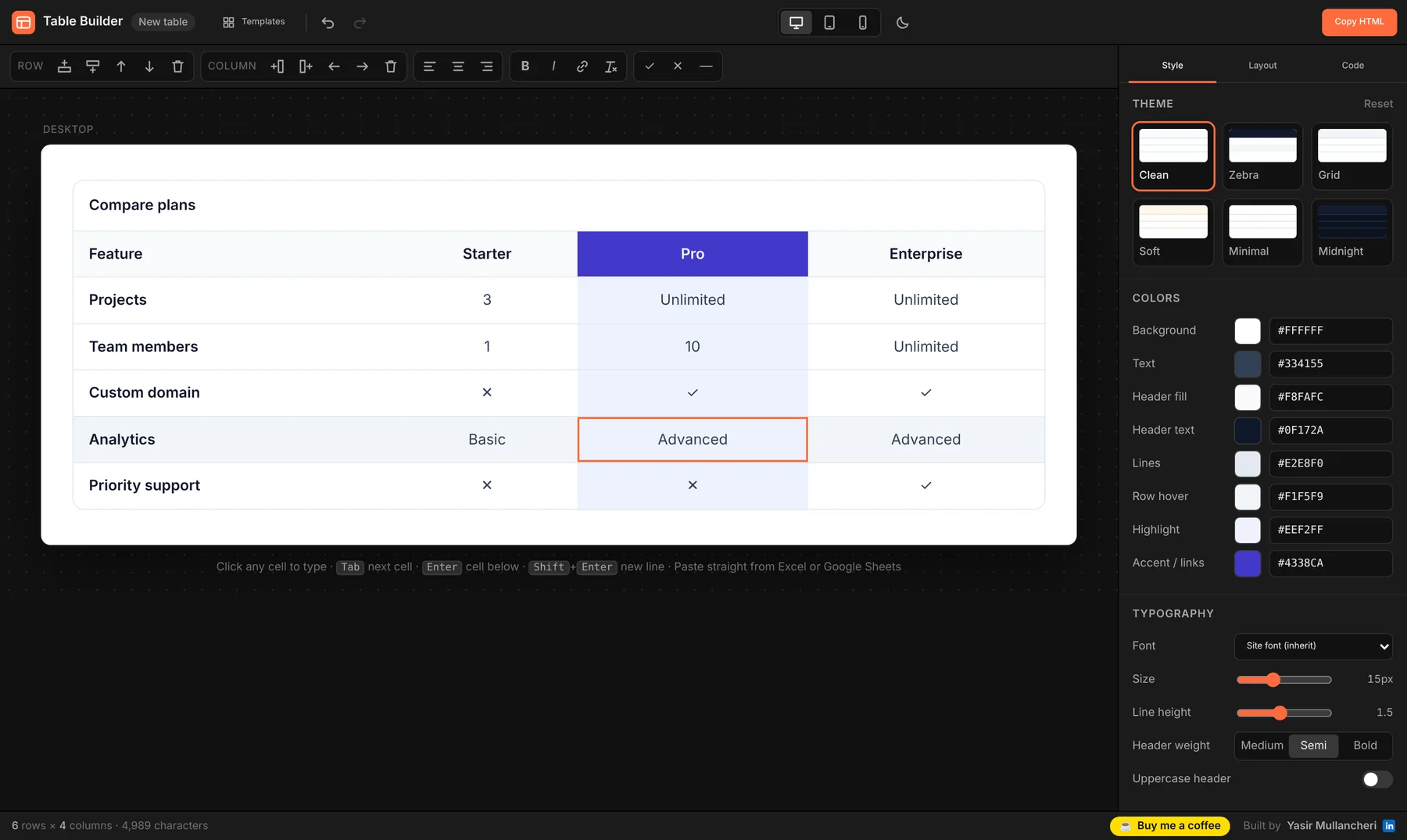
Fill it in, then make it look right
- Type straight into the cells. Tab jumps to the next cell, Enter goes down.
- Paste a range from Google Sheets or Excel into any cell — rows and columns are added for you.
- Templates (top bar): comparison, pricing, specs or schedule.
- Style tab: 6 themes, colours, font, padding, borders, corners, stripes.
- Layout tab: header row, first-column header, footer row, caption.
- Click a cell to set that column's alignment, width or turn on Highlight column.
When it looks right, click Insert table (top right). The table is added to your rich text as an embed and saved automatically.
Choose how it behaves on small screens
In the Layout tab → Small screens:
- Scroll — swipe sideways. Turn on Sticky first column so labels stay visible.
- Cards — every row becomes a labelled card. Best for comparisons and specs.
- Squeeze — columns shrink and text wraps. Good for small tables.
Use the phone and tablet icons in the top bar to preview before inserting.
05 — edit an existing table
Reopen any table in the visual editor
- In the rich text, click the table's grey embed box.
- Click the </> icon above it to open the Code Embed Editor.
- Click the orange Edit visually button next to Save.
- Make your changes and click Update table. The embed updates and saves itself.
06 — outside the cms
Use it on static pages, or any other site
- Click the Table Builder icon in Chrome's toolbar → Open Table Builder — or press Alt+Shift+T.
- Build your table and click Copy HTML.
- Paste it into any Code Embed element (Designer) or any website that accepts HTML.
Bring a table back: open Table Builder → Code tab → paste the embed code (or CSV) into Import → Load table.
07 — shortcuts
Keyboard
Shortcuts inside the editor
On Mac, use ⌘ instead of Ctrl.
| Tab / Shift+Tab | Next / previous cell (adds a row at the end) |
| Enter | Cell below (adds a row at the end) |
| Shift+Enter | New line inside a cell |
| Ctrl+B / I / K | Bold / italic / link |
| Alt+↑ / ↓ | Move the current row up / down |
| Ctrl+Z / Ctrl+Shift+Z | Undo / redo |
| Ctrl+Enter | Insert / update the table |
| Esc | Close the editor (press twice if you have unsaved changes) |
☕ — enjoying it?
That's everything. Hope it saves you time!
Table Builder is free, with no ads or paid plans. If it's made your Webflow work easier, you can buy me a coffee — or simply leave a review on the Chrome Web Store. Both genuinely help.
08 — troubleshooting
Troubleshooting
If something doesn't work
Start with the first fix — it solves most problems.
First: reload the Webflow tab and try again
- Press Ctrl+R (⌘+R on Mac) on the Webflow tab.
- Wait for the CMS or Designer to fully load.
- Try + → Table or </> → Edit visually again.
Chrome only connects an extension to a page when the page loads — so after installing or updating, tabs that were already open don't know it exists yet.
The "Table" option is missing from the + menu
- Reload the Webflow tab (see above).
- Go to
chrome://extensionsand check Table Builder is turned on. - Make sure you're in a Rich Text field — the + menu of other elements doesn't have it.
- Still missing? Use the toolbar icon → Open Table Builder → Copy HTML, then add an HTML embed from the + menu and paste.
No "Edit visually" button in the code editor
- Reload the Webflow tab, then open the embed's </> code again. The button can take a second to appear.
- The button only shows for tables made with Table Builder (the code starts with
<div class="wtb …"). - For any other HTML table: copy its code → toolbar icon → Open Table Builder → Code tab → Import → Load table. Edit, Copy HTML, paste it back and save.
I clicked Insert, but the table didn't appear
- The table code is always copied to your clipboard as a backup.
- In the rich text, click + → HTML embed, paste with Ctrl+V and click Save & Close.
- Remember: in the CMS editor the embed shows as a grey box — that's expected. Preview or publish to see the table.
The table looks different on my live site
- Make sure the item is published — changes in the CMS only go live after publishing.
- If you set the font to Site font (inherit), the table uses your site's font — that's intended.
- Very strong site CSS on
table,tdorthcan override styles. Let me know and I'll help.
"Over the character limit" warning
Webflow embeds allow up to 50,000 characters. A typical table uses 5,000–10,000. If you hit the limit, split the table into two, or simplify long cell content.
I have two copies of Table Builder installed
If you tested an unpacked copy, remove it in chrome://extensions and keep only the Chrome Web Store version, then reload Webflow. Running two copies at once can make them get in each other's way.
09 — still stuck
Need help?
Still stuck? Tell me.
Send a screenshot of what you see and which browser you use. Webflow updates its interface now and then — reports help me fix things fast.